How to Check Word Count in Microsoft Word (Document or Selection) | TextToools
Use Word’s status bar or Review > Word Count for a document total. Select a passage to count just that section, then check the counting scope before using the result for a strict limit.
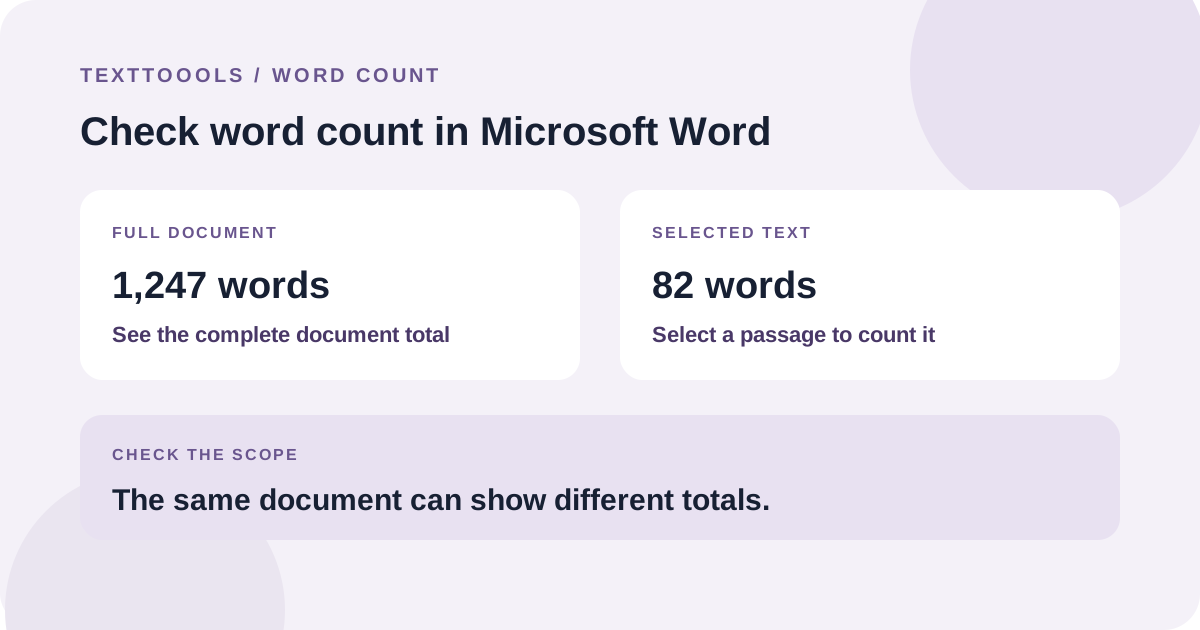
The quickest way to see the word count
Open your document in Microsoft Word and look for the word count on the status bar, usually along the bottom of the window. It updates as you edit, so you can check a draft without counting by hand.
If the count is not visible, open the Review tab and choose Word Count. Menu labels and placement can vary slightly between Word versions.
Count only a paragraph or selection
Select the passage you want to measure. Word shows the number of words in the selection as well as the total for the document, which is useful for checking a section, abstract, or answer against its own limit.
Make sure the selection starts and ends in the right places. A heading, citation, or final sentence left outside the selection can change the result.
Open the detailed Word Count dialog
Click the word count on the status bar to see more detail. Microsoft’s Word Count guidance lists words, pages, characters, paragraphs, and lines. This can help when a brief specifies more than a word limit.
If you use the Word Count command from the Review tab, check the options shown in your version of Word and apply the scope required by your assignment or publisher.
Word for the web and desktop Word
Word for the web also provides a word count while you edit, and you can select text to check a partial count. The exact controls may look different from the desktop app.
For a formal submission, check the final document in the version of Word named by your instructions. If the count matters for footnotes, endnotes, captions, or other separate content, confirm how that material should be treated instead of assuming every version counts it the same way.
Why two word counts can differ
First compare the scope: one result may cover the entire document while another covers only the selected text. Also check whether the document includes headings, notes, captions, or references that the recipient excludes.
A separate counter only sees the text you paste into it; it cannot inspect Word’s layout or know which parts your instructions exclude. Different tools can also use different word-count rules, so use the method required for a strict limit.
Check a document against a word limit
Before submitting, save the final version, check the full document in Word, and then check any section with its own limit by selecting it. If the instructions exclude references or notes, follow their exact rule and verify the relevant text separately.
Leave a small margin below the maximum when you can. Editing the document after checking it can change the count, so run Word Count once more on the version you plan to send.
A note from the founder
A word count is only useful when you know what it measures. I recommend checking the complete, saved document in the same app and scope that the recipient will use, especially when the limit is strict.
About the author
Written by the founder of TextToools. I build privacy-respecting text tools because I believe your text should not have to leave your browser.
Sources and further reading
- Show word count — Microsoft Support
- Word features comparison: Word for the web vs. desktop — Microsoft Support