·
How to Compare Two Document Versions and Review Changes | TextToools
A comparison reveals what changed, not whether an edit is correct. Preserve both originals, choose the right review workflow, and verify changes in context.
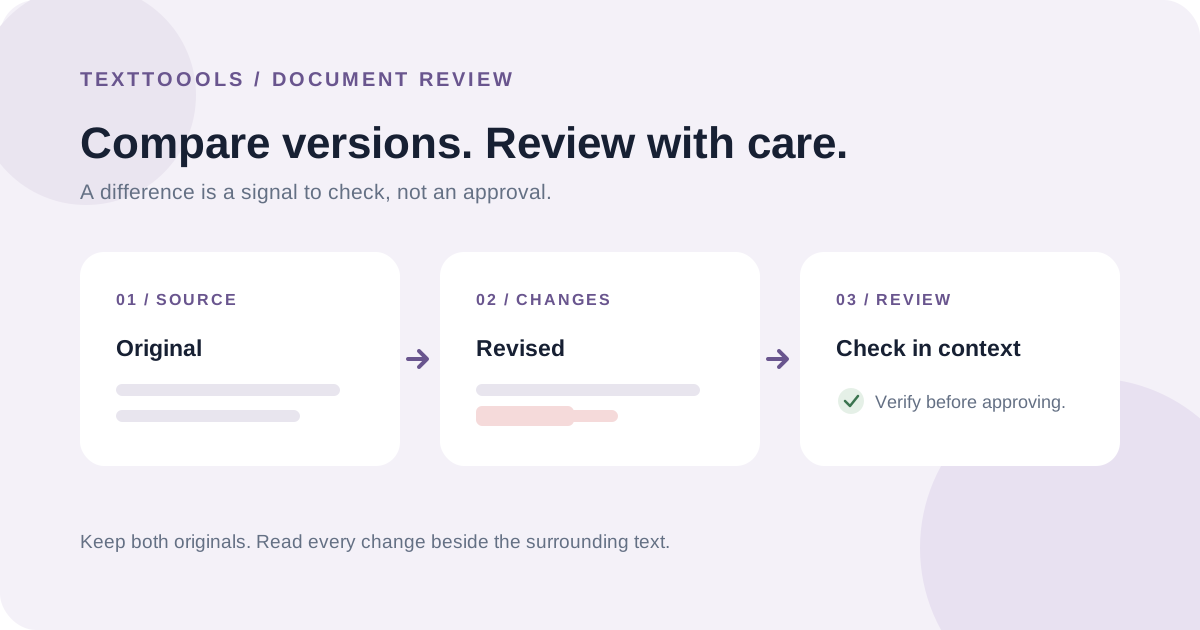
Start by protecting the versions you need
Before comparing drafts, identify which file is the original and which is the proposed revision. Save or retain both source versions, and make sure you have permission to review them. A comparison should create a way to inspect changes without accidentally overwriting the documents you are checking.
Also define the scope. Confirm that you are comparing the same document, sections, and attachments. A revised copy may omit a page or use different headings; those differences can affect the review even when the changed sentences look small.
Compare document files in Microsoft Word
In desktop Word, open Review > Compare > Compare. Select the original and revised documents, choose which types of changes to show, and run the comparison. Word displays the results in a new third document by default, leaving the two source documents unchanged.
Word can compare text, formatting, and comments, and lets you view changes at the character or word level. If either source contains tracked changes, Word may ask how to handle them before continuing. Read that prompt carefully: its comparison treats changes in the original as accepted and displays changes in the revised version as tracked changes.
Compare documents in Google Docs
For two Google Docs, open the primary document and select Tools > Compare documents. Choose the other file and start the comparison. Google Docs creates a third document that shows differences as suggested edits, so you can review that result without replacing either source.
Google Docs also supports comparing a document with a Word .docx file stored in Google Drive. Its help page notes that changes to column layout and table column width are not compared. Check the generated document for the kinds of formatting or content your review requires.
Review changes in context, not just as marks
Read each addition and deletion with the surrounding sentence and section. Check names, dates, amounts, links, requirements, and exceptions against the source of truth. A change can be grammatically smooth and still alter the scope or obligation of a sentence.
Look for moved paragraphs, missing headings, duplicated text, and content that was not included in the comparison. A diff identifies differences according to its method; it does not determine whether an edit was intended or whether the document is complete.
When a plain-text comparison is enough
If you only need to compare copied text, paste the same section from each version into the TextToools Compare Text tool. It highlights added, removed, and unchanged lines in your browser. The tool does not read document files, preserve formatting, or show who made a change.
For a review that depends on comments, tracked changes, tables, layout, or reviewer identity, use the document editor's compare feature instead. Keep the original files and make the decision to accept or reject a change in the workflow that owns those documents.
A practical review checklist
1. Confirm the original, revised version, and review scope.
2. Keep recoverable copies of both source documents.
3. Use a comparison method that includes the content and formatting you need.
4. Read each change in context and verify important facts against trusted sources.
5. Check omissions, moved sections, comments, and tracked changes.
6. Record which version was reviewed and who approved the final document.
A note from the founder
I built the TextToools comparison tool for quick checks on plain-text passages, not to replace document review. When a change matters, I prefer to preserve the original, inspect the difference in context, and use the document editor for any decision that depends on comments, formatting, or revision history.
About the author
Written by the founder of TextToools. I build privacy-respecting text tools because I believe your text should not have to leave your browser.
Sources and further reading
- Compare document differences using the legal blackline option — Microsoft Support
- Compare documents in Google Docs — Google Docs Editors Help