How to Count Words in a PDF (Text and Scanned Files) | TextToools
First check whether the PDF contains selectable text. Copy text-based files into a word counter; use OCR for scans, then review the extracted text for omissions and errors.
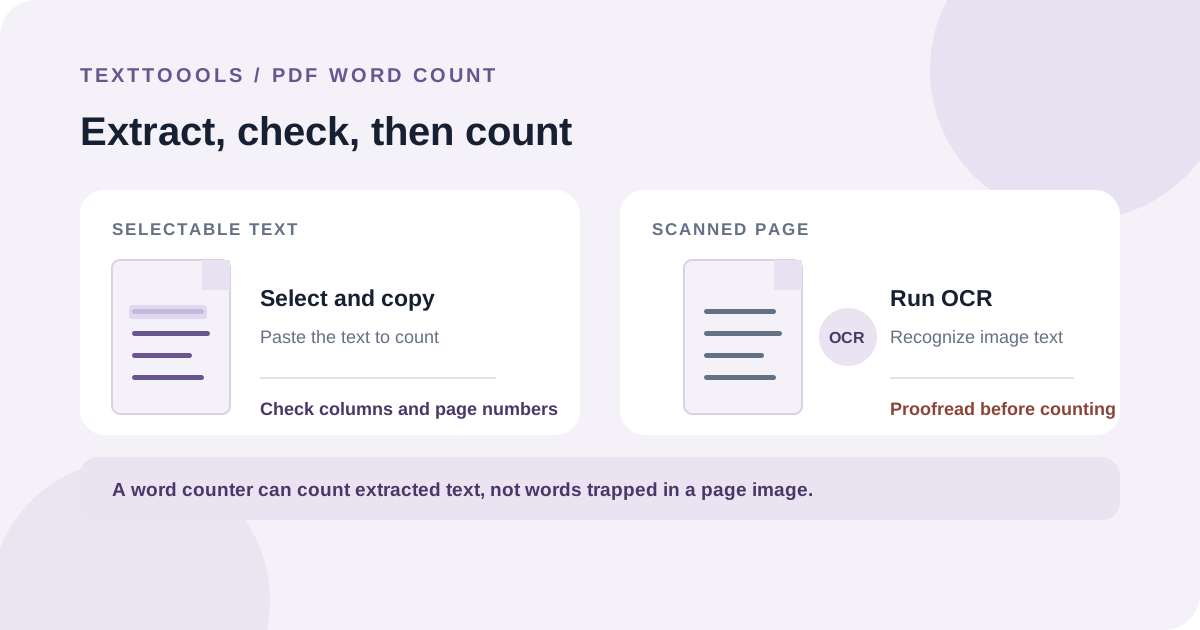
The quick answer: check whether you can select the text
A PDF does not always contain text that a word counter can read. Try selecting a sentence with your cursor. If you can select and copy the words, paste the text into a word counter. If the page behaves like a picture and you cannot select its words, you need optical character recognition (OCR) to turn the image into text first.
Neither method guarantees an exact total. Text extraction can miss or reorder content, and OCR can misread characters. Check the extracted text against the PDF before relying on the count.
Count a text-based PDF
1. Open the PDF in a reader that lets you select text, then copy the passage or pages you need to count.
2. Paste the copied text into a word-count tool. TextToools counts pasted text in your browser; it does not accept or process PDF files directly.
3. Compare the pasted text with the PDF, especially if it has columns, sidebars, tables, headers, footers, or page numbers. Copying can join columns in the wrong order or include repeated page furniture.
4. Remove material that your assignment or brief excludes, then check the total again. Keep the original PDF open so you can spot missing paragraphs or duplicated lines.
Use OCR for a scanned PDF
A scanned document is usually a set of page images rather than selectable text. OCR software recognizes the letters in those images and produces text that you can review and count. The scan needs to be clear and upright; blurred, low-contrast, handwritten, or unusual text may be recognized incorrectly.
After OCR, proofread the result against the page images. Pay special attention to names, numbers, punctuation, accents, footnotes, and text in columns or tables. Google Drive can open PDF and image files as text in Google Docs, but its help documentation warns that complex layouts such as columns and tables may not align correctly.
OCR is a conversion step, not a guarantee that every visible word was recognized. For a long or high-stakes document, check each page and correct the extracted text before counting it.
Convert the PDF when copying is not practical
For a text-based PDF, you can open a copy in Microsoft Word and count the converted document. Word converts the PDF into an editable format; Microsoft notes that the result may not match the original page layout, especially when the PDF contains complex tables, graphics, or columns.
Treat a converted document as another way to extract text, not as proof that nothing changed. Compare it with the PDF, remove anything outside your required word-count scope, and use the same counter that your submission instructions specify.
Decide what your word limit includes
A word counter can only count the text you give it. Your brief or publisher decides whether the total includes the title, headings, captions, quotations, citations, footnotes, bibliography, or appendices. Check those instructions before copying the PDF so you do not accidentally include or leave out a section.
If no counting rule is provided, choose a clear scope, apply it consistently, and mention it when reporting a total that others need to verify. Word counters can also use different rules for hyphens and other punctuation, so use the method required by the destination when a strict limit applies.
Protect private documents and verify the final count
A PDF may contain personal, medical, legal, financial, or work information. Before using an OCR or conversion service, check whether the file is uploaded, how the service handles it, and whether your organization allows that service. If the document is confidential, use an approved local tool rather than sending it to an unapproved website.
Once you have the text, compare it page by page with the source, confirm that the required sections are included, and count the corrected text using one consistent method. Save the extracted text only where it is appropriate for the document's sensitivity.
Try the TextToools Word Counter
When you have checked and copied the text you are allowed to process, paste it into the TextToools Word Counter to see its word, character, sentence, and paragraph totals. The count runs in your browser. It does not upload your text, and it does not open PDF files, so extract or recognize the words with a suitable PDF tool first.
A note from the founder
When I built the TextToools Word Counter, I made it count text in the browser rather than ask people to upload documents. That also means the counter works with text you paste, not the PDF itself. For a document, I recommend checking the extraction first so the total reflects the words you intended to count.
About the author
Written by the founder of TextToools. I build privacy-respecting text tools because I believe your text should not have to leave your browser.
Sources and further reading
- Convert PDF and photo files to text — Google Drive Help
- Opening PDFs in Word — Microsoft Support