How to Sort a List Alphabetically Online (A–Z, Z–A, and Numbers) | TextToools
Put one item on each line, choose A–Z or Z–A, and check number and blank-line settings before using the sorted list.
The quick way to sort a plain-text list
Put one item on each line, select the full list, and sort from A to Z. For reverse alphabetical order, choose Z to A. Before using the result, check whether numbers inside labels should be compared as numbers and whether blank lines should stay.
A text sorter changes the order of lines; it does not know which entries belong together in a spreadsheet, remove duplicates, or correct spelling. Keep an untouched copy when the original order matters.
Prepare the list before sorting
Use one complete item per line. Check that names, labels, or phrases have not wrapped onto separate lines, and remove headings or notes that should not be part of the list. If the source is a spreadsheet, do not copy just one column when its values belong to other columns in the same rows.
Decide what to do with empty lines and repeated items. Sorting does not deduplicate a list, so identical entries remain. Blank lines may move to the beginning or end; remove them only if they are not meaningful.
Choose A–Z, Z–A, or reverse order
A–Z sorts the lines alphabetically in ascending order. Z–A sorts alphabetically and then reverses that result. Reverse order is different: it flips the original sequence without sorting, so the last line becomes the first.
For example, if the original order is pear, apple, banana, reverse order produces banana, apple, pear. Z–A instead orders those names alphabetically from the end of the alphabet.
Decide how numbers should be ordered
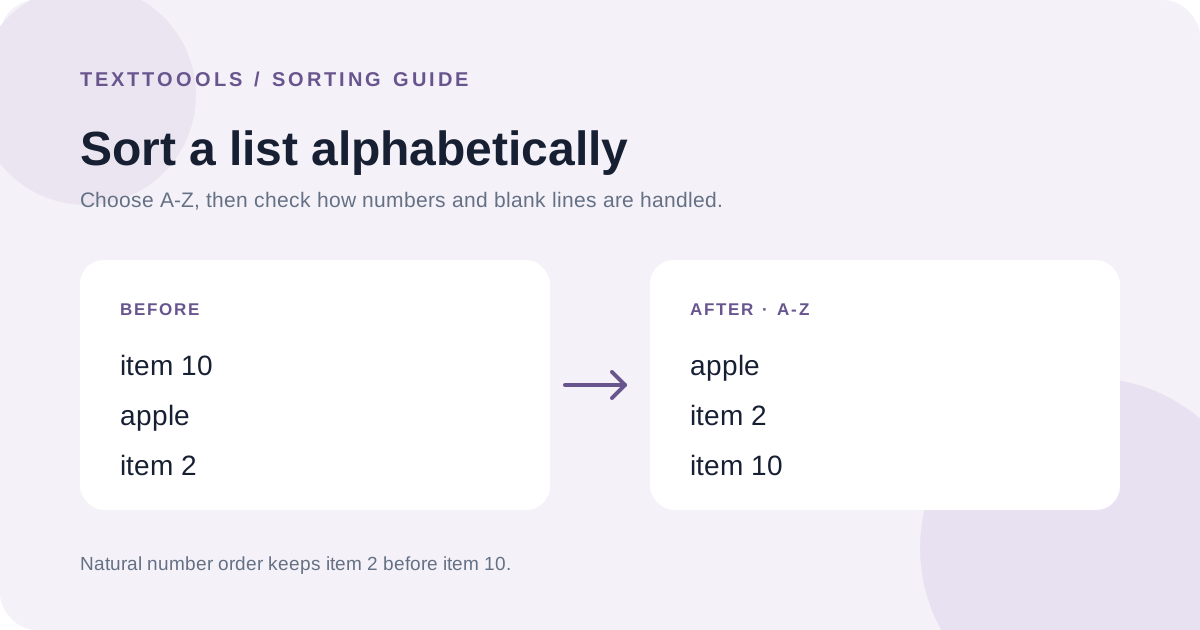
If list items contain numbers, natural number sorting usually matches how people expect numbered labels to read: item 2 comes before item 10. A character-by-character sort can put item 10 first because it compares the digit 1 before 2.
In the TextToools Text Sorter, natural number order is enabled by default. Keep it on for chapter names, versions, or numbered tasks; turn it off when you specifically need a character-by-character order, such as when digits are identifiers rather than quantities. Check the setting instead of assuming every sorter handles numbers the same way.
Check accents, blank lines, and duplicates
Sorting rules can differ between tools and languages. In the TextToools sorter, A–Z does not distinguish uppercase from lowercase or accented from unaccented letters. If the exact placement of names with accents matters, review the result against the ordering rules your list must follow.
The TextToools sorter keeps empty lines by default and offers an option to remove empty or whitespace-only lines. It also keeps duplicate entries. Sorting is an ordering step, not a cleanup or validation step, so review spelling and repeated items separately.
Sort spreadsheet data without separating rows
In a spreadsheet, sort the complete range of related columns—not just one column—so each person's other values stay on the same row. Include the header row only when the spreadsheet's sort options know to treat it as a header. Google Sheets documents sorting a selected range and choosing the column and direction.
For a simple text list with one item per line, a line sorter is more direct. For a table with names, dates, or other connected fields, use the spreadsheet's range-sorting controls and inspect the result before saving.
A note from the founder
When I built the TextToools Text Sorter, I kept Z–A sorting separate from simply reversing the list. They look similar in a menu, but they do different jobs: one sorts the values, while the other preserves every item's original position relative to the others and flips the sequence.
Try the TextToools Text Sorter
Paste a line-based list into the TextToools Text Sorter, choose A–Z, Z–A, or reverse order, and decide whether natural number order and blank-line removal fit your task. The sorting runs in your browser. Keep a copy of the source and check the output before you paste it back into a document or spreadsheet.
About the author
Written by the founder of TextToools. I build privacy-respecting text tools because I believe your text should not have to leave your browser.
Sources and further reading
- Sort data in alphabetical or numerical order — Google Docs Editors Help