How to Count Characters in Excel (One Cell or a Range) | TextToools
Use =LEN(A1) for one cell, fill it down to count a list, or add several LEN results for a total. Excel counts spaces too.
The quick answer: use LEN
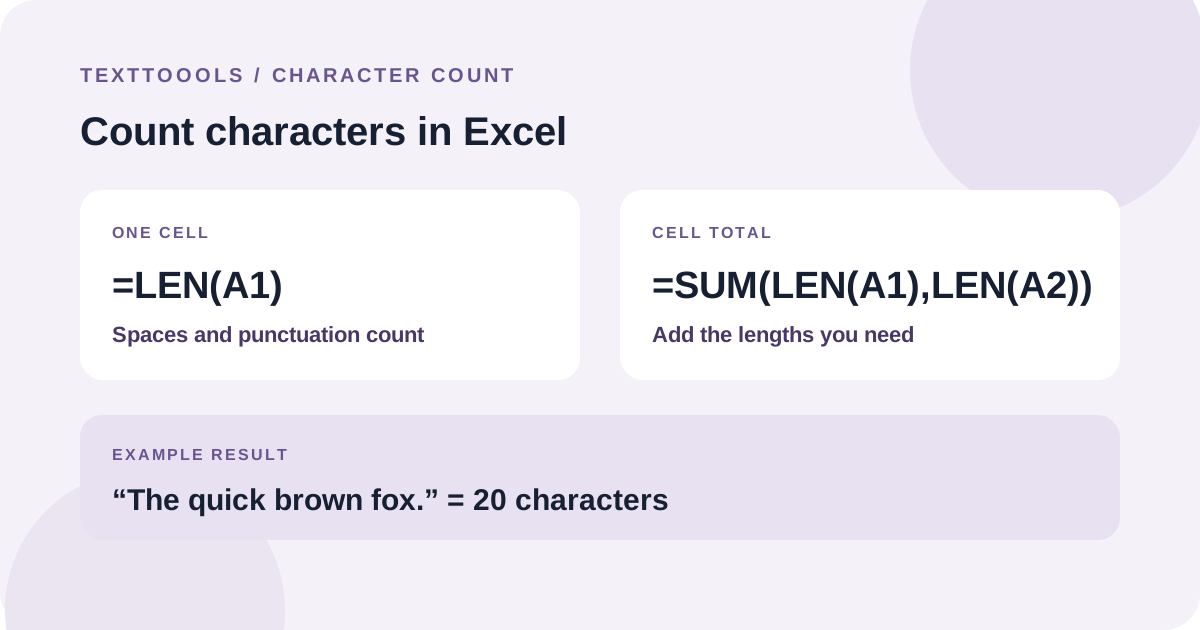
To count the characters in one Excel cell, enter =LEN(A1) in another cell and replace A1 with the cell you want to check. For example, “The quick brown fox.” contains 20 characters, including its spaces and final period.
LEN counts the entire text in the cell. It does not remove extra spaces or punctuation before returning the result.
=LEN(A1)20 wordsIf A1 contains “The quick brown fox.”, LEN returns 20.
Count characters in many cells
To get a separate count for each row, enter =LEN(A1) beside the first text cell, then copy or drag the formula down. Excel adjusts the reference for each row, so the next formula becomes =LEN(A2). Microsoft documents this fill-down method for counting multiple cells.
Add the characters from several cells
If you need one combined total, add a LEN calculation for each cell inside SUM. For example, if A1 contains “The quick brown” and A2 contains “fox.”, count them with the formula below. It returns 19 characters across both cells; it does not insert an extra character between cells.
=SUM(LEN(A1),LEN(A2))19 wordsA1 has 15 characters and A2 has 4, so their combined total is 19.
What Excel includes in the count
Spaces count as characters, including spaces at the beginning or end of a cell. Punctuation, digits, and line breaks in the cell text also contribute to the result. If a total looks unexpectedly high, check for trailing spaces or other text you did not notice.
If your instructions exclude ordinary spaces, =LEN(A1)-LEN(SUBSTITUTE(A1," ","")) subtracts them from the total. This formula removes regular space characters only; it does not remove tabs or line breaks. Use the exact whitespace rule specified by the form or recipient.
The examples use English function names and commas between arguments. Depending on your Excel language and regional settings, you may need localized function names or different separators. If Excel reports a formula error, check those settings.
Excel and other counters can treat emoji differently
Excel's LEN behavior depends on the workbook's compatibility version. Microsoft's Compatibility Version 2 documentation says supported Microsoft 365 workbooks count many surrogate-pair emoji as one; variation selectors and components of some combined emoji can still count separately. Older compatibility behavior may count some of these symbols differently.
TextToools counts Unicode grapheme clusters, which usually correspond to visible characters. That is a different rule from Excel's LEN. When a strict limit applies, check the text in the destination app or use the counter named in its instructions.
A note from the founder
When I built the TextToools Character Counter, I chose to count visible Unicode grapheme clusters, so a joined emoji sequence or a letter with a combining accent is counted as one visible character. Excel's LEN follows its own workbook compatibility rules, so I recommend checking strict limits with the counter that will receive the text.
About the author
Written by the founder of TextToools. I build privacy-respecting text tools because I believe your text should not have to leave your browser.
Sources and further reading
- LEN function — Microsoft Support
- Count characters in cells in Excel — Microsoft Support
- Compatibility versions — Microsoft Support