How to Check Character Count in Google Docs (With or Without Spaces) | TextToools
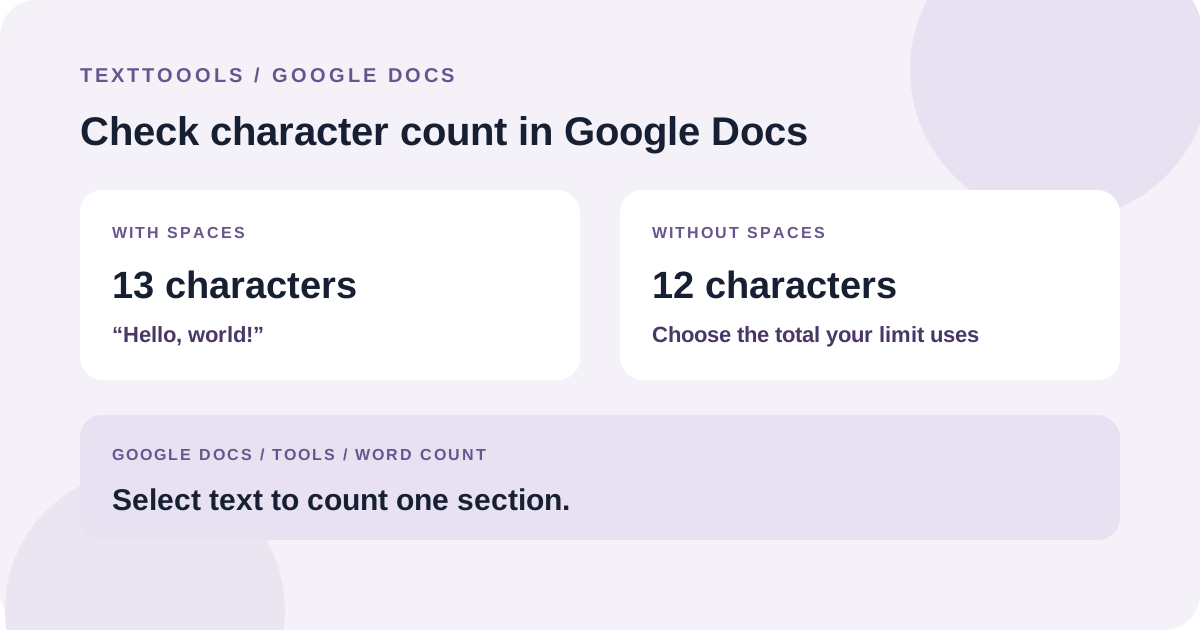
Open Tools > Word count in Google Docs to see characters with and without spaces. Select a passage first to count only that section.
The quickest way to count characters
Open your document in Google Docs, then choose Tools > Word count. The dialog shows the document's page and word totals along with character counts.
Google Docs labels the two character totals separately: characters with spaces and characters without spaces. Use the one that matches the limit you were given. For example, “Hello, world!” has 13 characters with the space and 12 without it.
Count a selected passage instead of the whole document
To check one paragraph, heading, or section, select that text first and then open Tools > Word count. The result is for the selected passage rather than the whole document.
Check the selection boundaries carefully. A space, line break, or punctuation mark at the edge can affect a character total.
Show a live count while you type
In the Word count dialog, turn on “Display word count while typing” to keep a word-count indicator visible as you edit. This is handy for writing to a word limit.
The live indicator is for words. To compare characters with and without spaces, open the full Word count dialog again.
Know what the document total includes
Google's help guidance says the whole-document count excludes headers, footers, and footnotes unless you select a section of the document. If an assignment or publisher has a specific rule, use that scope rather than assuming every visible part is included.
For a selected passage, check exactly what you highlighted and use the count shown for that selection. If your required total includes separate notes or page elements, confirm how the recipient expects them to be counted.
Choose the right character total
Use “characters with spaces” when spaces count toward the stated limit. Use “characters without spaces” only when the instructions explicitly exclude spaces.
Do not remove spaces from the document just to get a smaller number. That changes the text itself; the two totals are provided so you can measure the same passage under different rules.
Check the final version before submitting
Count the exact text you plan to submit, confirm whether the limit is for the whole document or one section, and choose the matching with-spaces or without-spaces total. Save your edits and check again after making changes.
If a form or publisher specifies its own character counter, follow that requirement. Tools can apply different rules to spaces, line breaks, or combined Unicode characters.
A note from the founder
When I built the TextToools Character Counter, I chose to report both the total and the count without whitespace, because different forms define their limits differently. I recommend checking the exact rule and the final text before relying on either number.
About the author
Written by the founder of TextToools. I build privacy-respecting text tools because I believe your text should not have to leave your browser.
Sources and further reading
- Count the words in a document — Google Docs Editors Help