How to Find and Replace Text Safely: A Practical Editing Guide | TextToools
A practical workflow for finding and replacing repeated text without changing more than you intend.
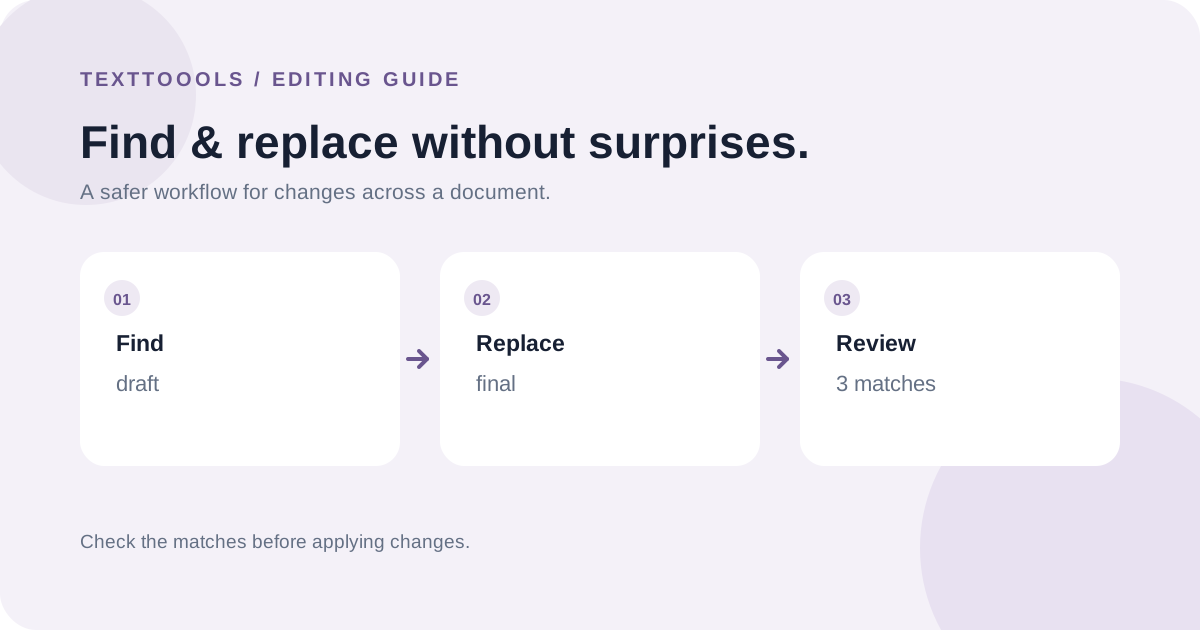
Short answer: check the scope before replacing
Find and replace is safest when you treat it as a small editing workflow, not a button to press and forget. Define exactly what should change, choose how narrowly to match it, check how many occurrences will be affected, and review the edited text in context.
This matters because a replacement can update many occurrences at once. A precise change such as correcting a project name may be straightforward; changing a common word, date, or abbreviation can quietly alter examples, links, quotations, or meaning.
Define the exact change before you search
Write down the old text and the intended new text before editing. Include punctuation, spaces, capitalization, and any relevant version or date. If you are changing a product name, for example, decide whether the change applies in headings, quoted material, URLs, code, and old release notes—or only in the current body copy.
Then identify the scope: one paragraph, a whole document, or a group of files. A safe replacement in a short announcement may be risky in a long report. If the editor applies changes across a whole document, narrow the selection first when that option exists, or work on a copy.
Choose the matching options deliberately
Case matching controls capitalization. With it off, a search for “draft” may also match “Draft”; with it on, those are different matches. Use case-sensitive matching for identifiers, acronyms, filenames, and labels whose capitalization carries meaning. If you want to standardize capitalization, leave it off only after checking the full result.
Whole-word matching helps distinguish a standalone word from the same letters inside a longer word. Searching for “cat” with whole-word matching avoids changing “scatter.” It is not language-aware grammar, though: punctuation such as a hyphen can form a boundary, so inspect compounds and hyphenated terms when they matter.
A whole-word option is useful for ordinary words, but it is not a substitute for checking the count and context. Names, abbreviations, product codes, and accented text deserve a quick test on a small sample before you apply the change everywhere.
Know whether the search is literal or pattern-based
A literal search looks for the exact characters you type. In TextToools Find & Replace, characters such as “+”, “.”, and “(” are searched as ordinary text rather than treated as regular-expression operators. For instance, searching for “a+b” finds that exact sequence, not “one or more a characters followed by b.” The replacement is inserted as typed; an empty replacement deliberately removes a match, while an empty search makes no changes.
Pattern search, often called regular expressions, is a different feature for matching a rule such as several date formats. Do not assume every editor interprets special characters the same way. Google Docs offers an explicit regular-expression option; when you need that kind of pattern, turn it on intentionally and verify the matches before replacing.
A careful workflow for a batch replacement
1. Save a copy or confirm that undo/version history is available. This gives you a recovery path if the result is broader than expected.
2. Search for the old text first. Read several matches in context and decide which ones genuinely need to change. If the search returns an unexpectedly large count, stop and refine the phrase, case setting, or whole-word setting.
3. Enter the replacement exactly as it should appear. Check capitalization, spacing, punctuation, and whether the new wording fits every sentence in which it will appear.
4. Apply the replacement and note the count. In TextToools, all matches are replaced together, so the count is a useful check—not a guarantee that each change is correct.
5. Review examples from the beginning, middle, and end of the text, as well as headings, lists, quotations, and any high-stakes section. Read the surrounding sentence aloud if a word change could affect tone or grammar.
6. Search again for the old phrase and inspect the new phrase. Confirm that no intended match was missed and that the replacement did not create awkward repetitions or alter unrelated text.
Examples where a quick replacement can go wrong
Replacing a person’s surname can unintentionally change another word that contains the same letters. Replacing “May” can affect a month, a person’s name, or the verb “may”; case and whole-word settings help, but context still decides whether a match is correct.
A replacement can also change material that should remain exact: a quotation, legal wording, a code sample, a URL, an email address, or a historical label. If those sections have different rules, edit them separately rather than applying a broad replacement to everything.
Finally, replacing a short phrase with a longer one can create doubled spaces, repeated words, or inconsistent grammar. A match count tells you how many substitutions occurred, not whether the revised sentences read well.
Keep the text and the final result under your control
For a high-impact change, preserve the original and compare the result before sharing or publishing it. If the document is collaborative, tell reviewers what phrase changed and where to focus their checks. For sensitive or confidential text, use a workflow and tool approved for that material.
TextToools performs this replacement in the browser and shows the number of matches, which makes it useful for checking a text block without uploading it to a text-processing service. Whatever tool you use, review the final document—not only the search result—and keep a recoverable original until you are satisfied.
A note from the founder
While working on TextToools Find & Replace, one thing became clear to me: the number of matches is part of the edit, not a minor detail. Seeing that count before trusting a bulk change can reveal that a search is broader than you meant it to be. That is why I recommend treating it as a checkpoint and then reading the changed text in context.
About the author
Written by the founder of TextToools. I build privacy-respecting text tools because I believe your text should not have to leave your browser.
Sources and further reading
- Find and replace words in a document, spreadsheet, or presentation — Google Docs Editors Help
- Find and replace text in Word — Microsoft Support