·
How to Count Words in an Email Before Sending (Gmail and Outlook) | TextToools
Check the exact part of an email that has a word limit. Use a browser counter for Gmail and newer Outlook, or Word Count in classic Outlook for Windows.
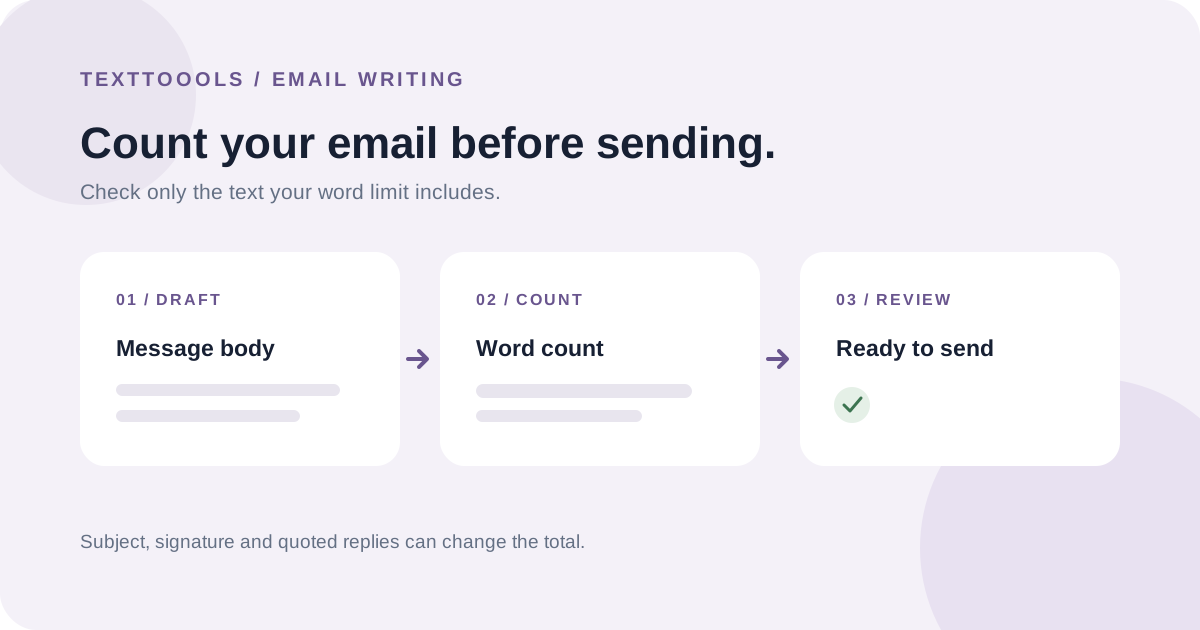
Decide what the word limit includes
Before counting, check whether the limit applies to the message body, the subject line, or both. Also decide whether to include a greeting, sign-off, automatic signature, and quoted replies. These parts can change the total, so count the text your instructions actually cover.
If the requirement is unclear, keep the subject and body separate and check the wording with the recipient or editor. Do not assume that a message's displayed word count includes every part of an email thread.
Count a Gmail or webmail draft
Copy only the draft text you need to measure, then paste it into the TextToools Word Counter. If the subject is part of the limit, count it separately or add it to the body only when the rules say to combine them. Review the pasted text before using the total so you do not accidentally include old replies or unrelated content.
The counter works in your browser and does not upload the text. If a draft contains confidential information, follow your organization's policy and use only tools approved for that content.
Use Word Count in classic Outlook for Windows
Microsoft's instructions for classic Outlook say to open or compose the message, then choose Review > Word Count in the message window. The dialog reports words, characters, and paragraphs in the message body.
Microsoft notes that this feature is not available in new Outlook for Windows. If you use new Outlook or Outlook on the web, copy the relevant draft text into a counter instead. Check the version before following menu instructions, because the two Outlook apps do not have the same features.
Use a word processor as another option
You can also paste the selected email text into a new Google Docs document and choose Tools > Word count. Google Docs provides word and character totals, but its help page notes that a document-wide count excludes headers, footers, and footnotes unless you select text.
For a short email, a browser counter is often a quicker way to check a plain-text copy. Whichever method you use, measure the same text and scope each time.
Understand why counts can differ
Word counters do not all use identical rules. The TextToools counter treats each group of non-whitespace characters as one word, so a hyphenated term without spaces counts as one. Punctuation attached to a word stays with that word; a different editor may apply different conventions.
Copying rich email text can also bring along a signature, quoted thread, or text you did not intend to count. Compare the selected passage with the rule you need to meet instead of assuming that every app measures the same material.
A quick check before you send
1. Confirm whether the limit covers the subject, body, signature, or quoted replies.
2. Copy only the text that belongs in the count.
3. Use the built-in count in classic Outlook for Windows, or a browser counter for a plain-text draft.
4. Recount after your final edits and compare the same scope with the same method.
5. Read the message once more for clarity; a word total alone cannot tell you whether the email is easy to understand.
A note from the founder
I built the TextToools Word Counter to make a quick text check available without uploading a draft. A count is useful when a message has a limit, but I still read the email separately to make sure the request and next step are clear.
About the author
Written by the founder of TextToools. I build privacy-respecting text tools because I believe your text should not have to leave your browser.
Sources and further reading
- Count the number of words in an email message — Microsoft Support
- Count the words in a document — Google Docs Editors Help