How to Check Word Count in Google Docs (and What It Leaves Out) | TextToools
Use Tools > Word count in Google Docs to check a document or selection. Google Docs excludes headers, footers, and footnotes from the document total.
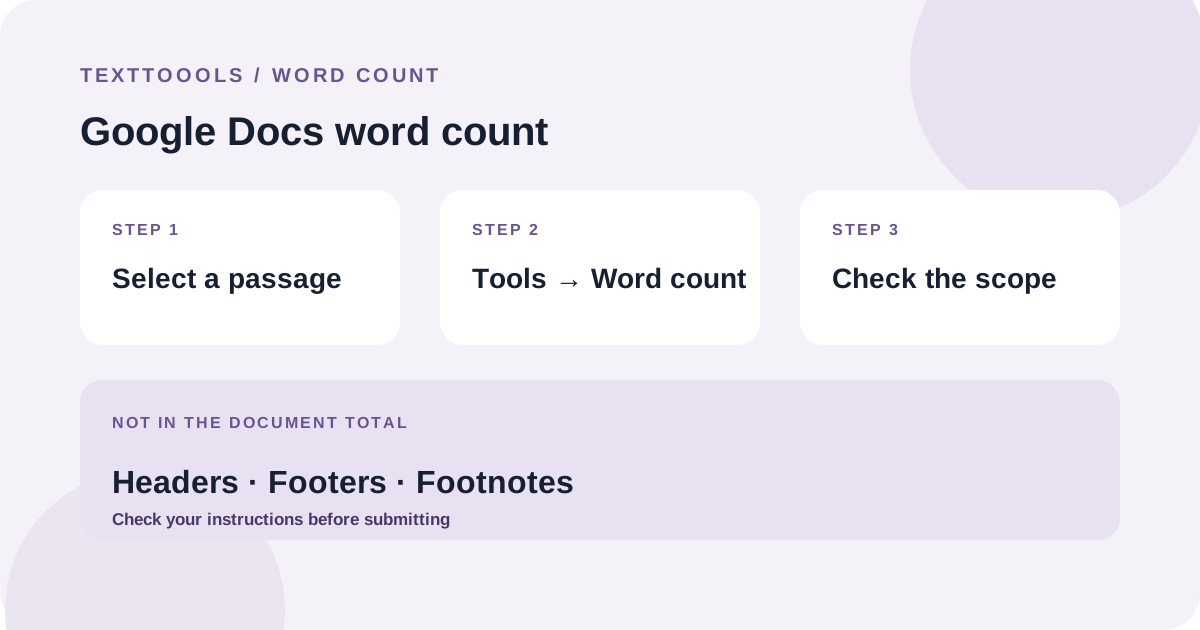
The quick answer: open Tools, then Word count
In Google Docs on a computer, open the document and choose Tools > Word count. The dialog shows the document's word total. If you select a section first, Google Docs reports the count for that selection instead.
Check what your assignment or publisher includes before relying on the number. Google Docs excludes headers, footers, and footnotes from the document-wide count, so its total may be lower than a brief that includes those parts.
How to count all or part of a document
1. Open the Google Docs document on a computer.
2. To count the document, leave the text unselected. To count a passage, select that passage first.
3. Choose Tools > Word count and read the word total in the dialog.
4. Compare the result with the exact scope in your instructions. Check whether the title, headings, captions, quotations, references, and notes are included.
5. If you edit the text, run the count again on the final version.
What Google Docs leaves out
Google's help documentation says a document-wide word count covers everything except headers, footers, and footnotes. Those sections can matter for an assignment, report, or submission limit, so the number in the dialog may not represent the total your instructions ask for.
If those sections count toward your limit, check the brief for a required method. Otherwise, copy the relevant text into a separate counter and add that count to the body total, taking care not to count the same text twice. Keep the parts and method consistent if you compare drafts.
Why Google Docs and another counter can disagree
A word total depends on both the text included and the counting convention. One counter may leave out document sections that another includes; tools can also differ in how they treat punctuation, hyphens, symbols, and other edge cases.
TextToools counts the text pasted into its Word Counter in your browser, with each group of non-whitespace characters treated as one word. It does not read a Google Docs file or fetch text from a document link. If a strict limit applies, follow the destination's instructions and use its required counter when specified.
A small example of checking a passage
Suppose you only need the count for a short report section. Select the body text for that section before opening Word count. The example below contains 11 words using TextToools' whitespace-based rule; a selection or a different counter can give another result if its scope or conventions differ.
A short report is ready. Check every section before sending it.11 wordsTwo sentences, 11 words total. Select only the passage you need to count.
A reliable word-count checklist
1. Read the instructions and note whether they include headings, footnotes, references, or other supporting text.
2. Decide whether you need the whole document or one selected section.
3. Use Tools > Word count in Google Docs and remember its documented exclusions.
4. Count any required excluded material separately if the instructions call for it.
5. Recheck the final version with the method required by the destination.
Try the TextToools Word Counter
If you need to count text separately or check a passage with a consistent whitespace-based rule, copy the relevant text and paste it into the TextToools Word Counter. The count runs in your browser; the tool does not open Google Docs files, and it counts only the text you provide.
A note from the founder
When I built the TextToools Word Counter, I chose to count text pasted into the browser rather than ask people to upload a document. That makes the counting scope visible: you decide which text to include, then check it against the rules that apply to your document.
About the author
Written by the founder of TextToools. I build privacy-respecting text tools because I believe your text should not have to leave your browser.
Sources and further reading
- Count the words in a document — Google Docs Editors Help